Stages of Concerns allow us to show at which stage of the process a Concern is, currently.
To add a new Stage, we’ll need to click the Add Stage Type button. We can then give our Stage a name. If we would like this Stage to be the first stage for each new Concern that is added, we will need to switch on the Default for New Concerns toggle. We’ll also need to switch on the Live toggle if we want the Stage to appear when we’re adding Concerns.
Once we’ve completed the details we can click the Add Stage button to add our new Stage.
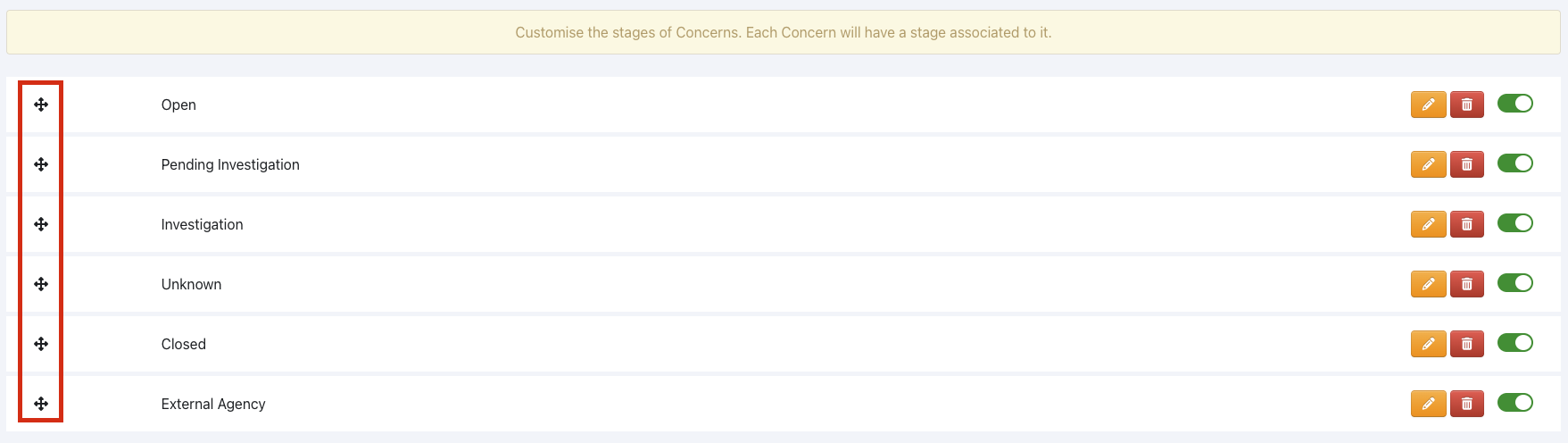
We can change the order of Stages by clicking the cross on the left and dragging and dropping the Stages to the order we want.

We can edit the details of a Stage by clicking the orange pencil button on the right and make any updates we need.
If we want to stop a Stage appearing when we add a Concern, we can switch of the toggle to the right of the pencil button.
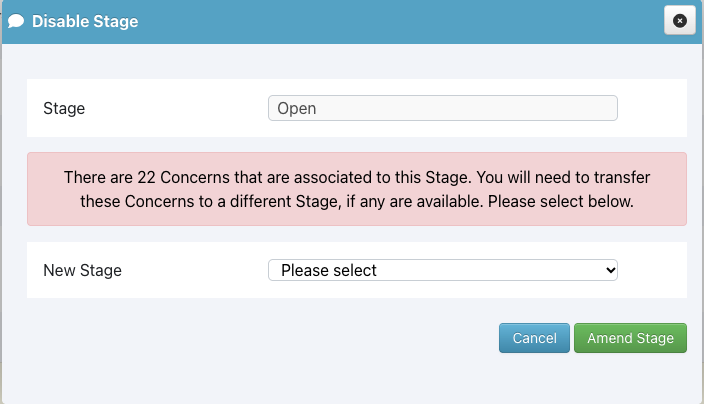
If the Stage is in use for any Concerns, we’ll see a message to inform us and to let us know that we will need to replace this Stage with another that is live. We can select the Stage that should replace the one we’re switching off, from the dropdown menu, and then click the Amend Stage button.