We can create a Room Booking form that can be embedded on our website, so that people can book our rooms directly from a page on our site.
Bookings made through the embedded form will come straight into our iKnow account.
Embed Options
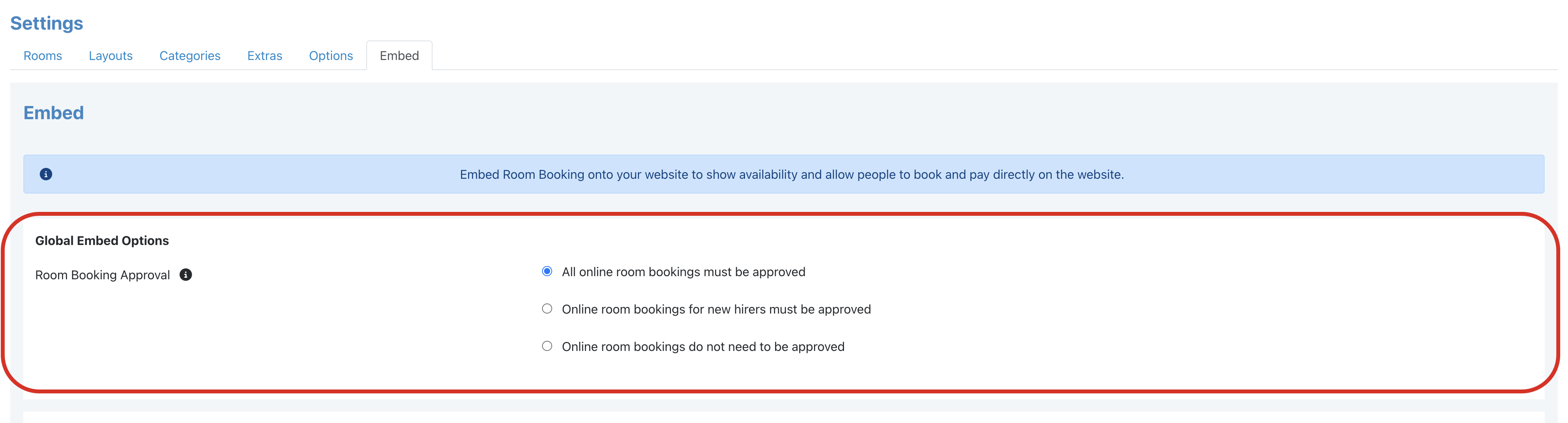
We have three options to choose from for our Room Booking form.
- All online Room Bookings must be approved
No Room Bookings from the embedded form will appear in our Room Booking calendar unless they are approved. - Online Room Booking for new hirers must be approved
Room Bookings will only require approval if the booking is from someone who hasn’t booked one of our rooms before. - Online Room Bookings do not need to be approved
All Room Bookings from the embedded form will appear on ourRoom Bookingcalendar without needing to be approved
We can select people to receive an email notification when the embedded Room Booking form is completed

These are people who have access to the Room Booking module in our iKnow account. We can select one person to receive notifications, or multiple people, by switching the toggles next to their name. If no toggles are switched on, no notifications will be sent.
Embed Code
To generate our embed code, we need to click the Add Embed button. We can generate multiple embeds, so we can create a separate embed for each location, or even each room.
We will need to give our Embed a name and, if we have multiple locations, select the relevant location.
We’ll then see the buildings that are associated with that location, and the rooms that are available for booking, within each building. Select which rooms should be included in this embedded form.
If we choose to switch on Show Room Profiles, the description and photo, for each room, will be shown.
The Enabled toggle will need to be switched on for the form to be available.

The code we need for our website can be obtained by clicking the Get Embed Code button.
We can edit the embed by clicking the Edit button.
We can remove the embed by clicking the Delete button.