The Import/Export Data tool allows us to easily add data to our iKnow database, using the Importer, and easily extract data from the database, using the Exporter.
To import data, we will need to have all of our data in a CSV file, which is a spreadsheet file. Popular spreadsheet apps, such as Excel, Numbers or Google Sheets, will allow us to save spreadsheets in the CSV format.
We must be set as the Data Protection Officer to be able to access the Import/Export Data tool, the option will not be available if we are not a Data Protection Officer. An existing Data Protection Officer will be able to add, if we don't already have access. If there is no Data Protection Officer then we'll need to contact the iKnow support team and helpdesk@iknowchurch.co.uk
If our account has multiple locations, we will only be able to import to and export from, locations where we are set as the Data Protection Officer.
The Import/Export Data tool is accessed by going to Settings and clicking Import/Export Data, in the Data section.
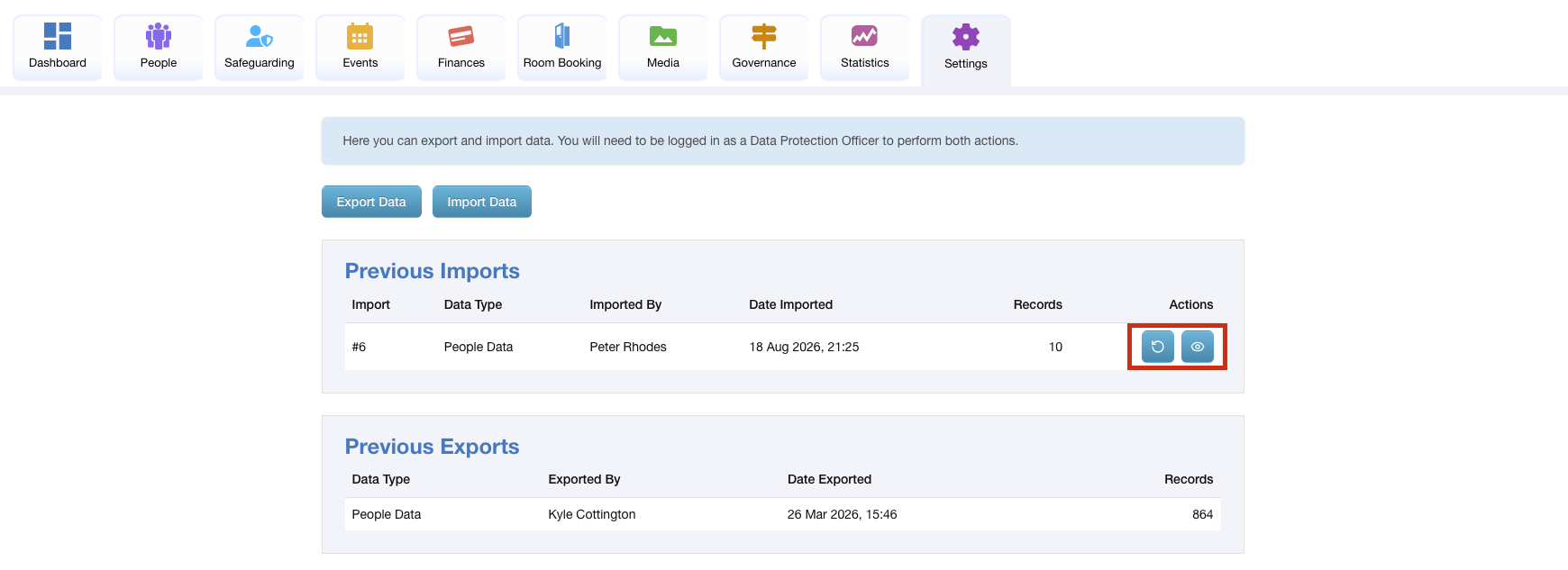
The page we are taken to will show us any previous Imports and Exports that have already taken place.
We will be able to view a list of the names of people that were imported on previous imports, by clicking the eye button to the right of the import. We will also be able to undo the most recent import within 24 hours of the import, which will remove any data that was added from that import, by clicking the circle arrow button. We will need to enter our iKnow password to be able to undo an import.