Custom Chats allow us to create chats for one-off events or special occasions, such as Conferences or days out.
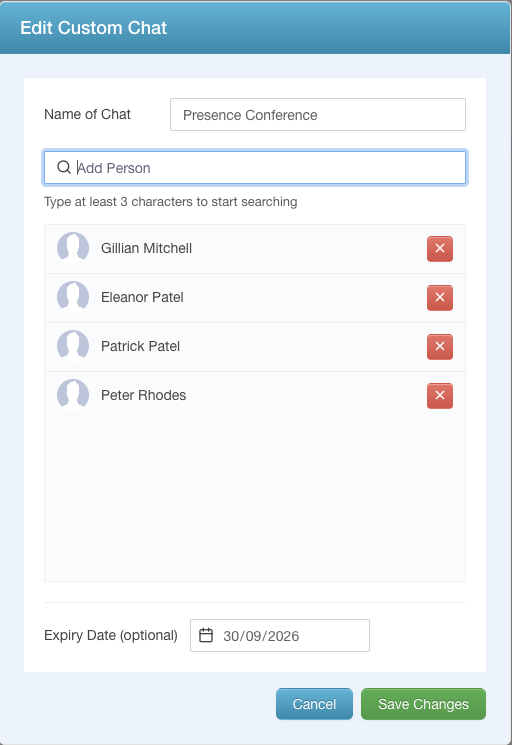
To create a Custom Chat we need to click the Create a Custom Chat button. We can then give our Custom Chat a name and add the people who need to be able to access the chat.
We can also add an Expiry Date for the chat which, when reached, will mean that no new messages can be added, though the existing messages will still be available for members of the chat, to read.
Once we have added a Custom Chat, we are able to see the details in the list on the Custom Chat page.

We can then view the details of the chat by clicking the blue eye button, which will allow us to see all the members of the chat.
We can edit the chat, by clicking the orange pencil button, which will allow us to change the name of the chat, add or remove members of the chat and change the Expiry Date.
Finally, we can delete the chat by clicking the red dustbin button. This will remove the chat and all the messages within the chat, and can't be undone.