To import data into our database, we will need to click the Import Data button.
We can download a template spreadsheet that contains all the columns that iKnow will recognise. If we've already downloaded our data from another system, we can adjust the column names on the download, rather than copying everything from one spreadsheet to another.
If we have more than one location, we will need to produce separate spreadsheet files for each location.
Once we have clicked the Import Data button, we will need to select to which church the data is being imported. We can then click Select File to choose the CSV file from our hard drive and click Next.
We will then see a list of the columns that are being imported into our database with a couple of sample records.
At the top of the list we'll be able to select which column should be used as the Unique Person ID. If you've used our template it includes an ID column. This is usually a number that is unique to each record in the spreadsheet. If this has been used, the Importer will automatically select that column for you.
Then we will see all the columns that we are importing, under Imported Column, the iKnow Field that column will be imported to, under iKnow Field, and then the sample records. The Importer will match the Imported Columns to existing iKnow Fields, but if there are other fields that the column could be matched with, we will be able to change the iKnow Field. To change the field the column will be imported to, we just need to click the current iKnow Field in the list, and we will see all the alternative options that are available. This will include any Custom Fields you may have added to iKnow.
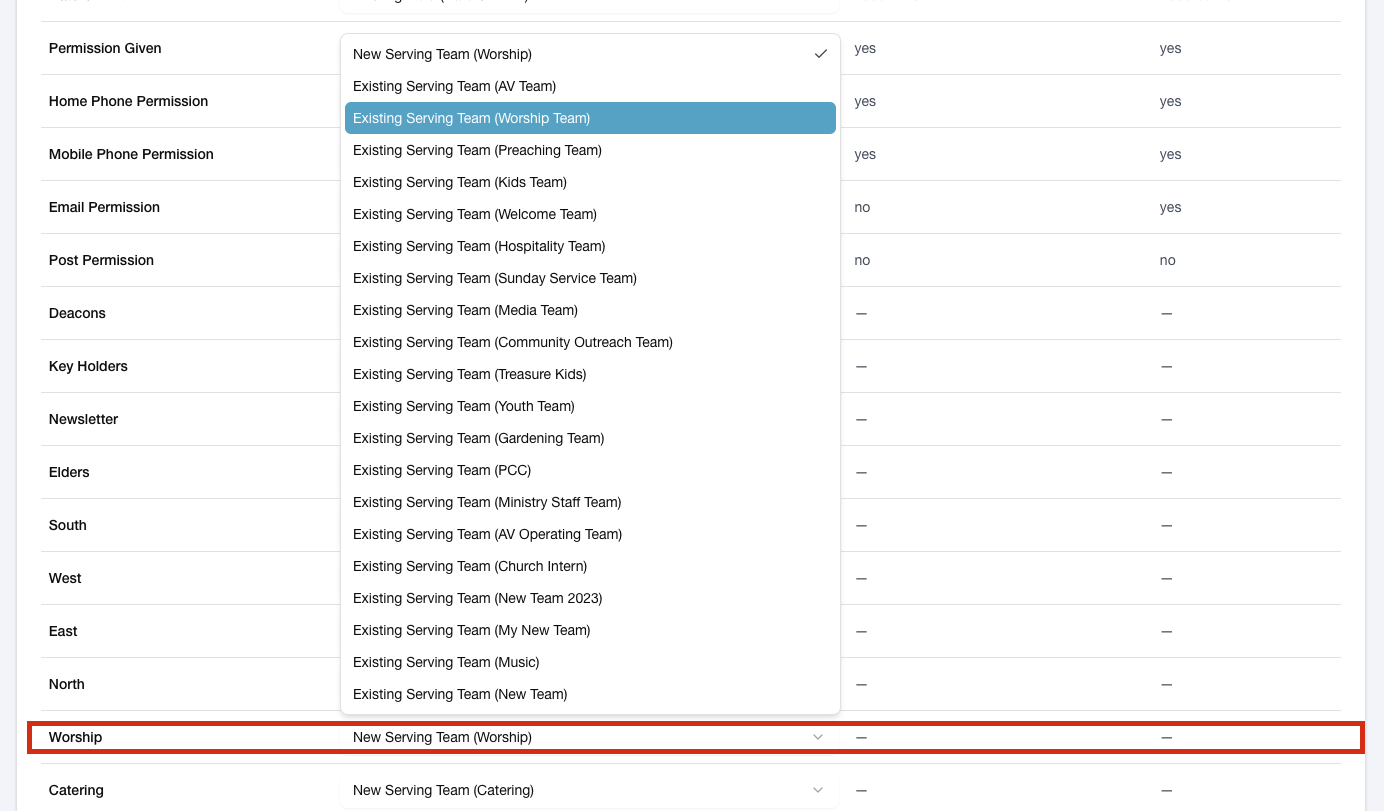
If we have included any Circles, Groups or Teams on the spreadsheet, that are not already added to iKnow, we will see them listed as 'New...'. If the name of the Circle, Group or Team have been added to the spreadsheet and is showing as new, but is in fact an existing team, you can select the existing team from the list. If it is a brand new Circle, Group or Team, then it will be created in iKnow when you complete the import, and the relevant people will be added.
Once we're happy that all the columns have been matched with the correct fields, we can click the Start Import button at the bottom of the page.
If there are any issues that the importer identifies, they will be shown on the next page, though there shouldn't be any if the correct columns have been used. We can then click the Continue button to complete the import.
Finally, we will see a list of all the names that have been imported and we can click the Continue button to be taken back to the Import/Export Data page.