As part of the process of adding a Church, we will have added a Main Building. If we wish to make any changes to the Main Building, we will need to click the View button next to the Church that contains the Building.
We can then click the orange pencil icon alongside the Building, make any changes we need and click the Save button.
We can replace the Main Building without removing the existing Building. To do this, click the red X icon and select whether we want to replace the current Building with an Existing Building or a New Building.
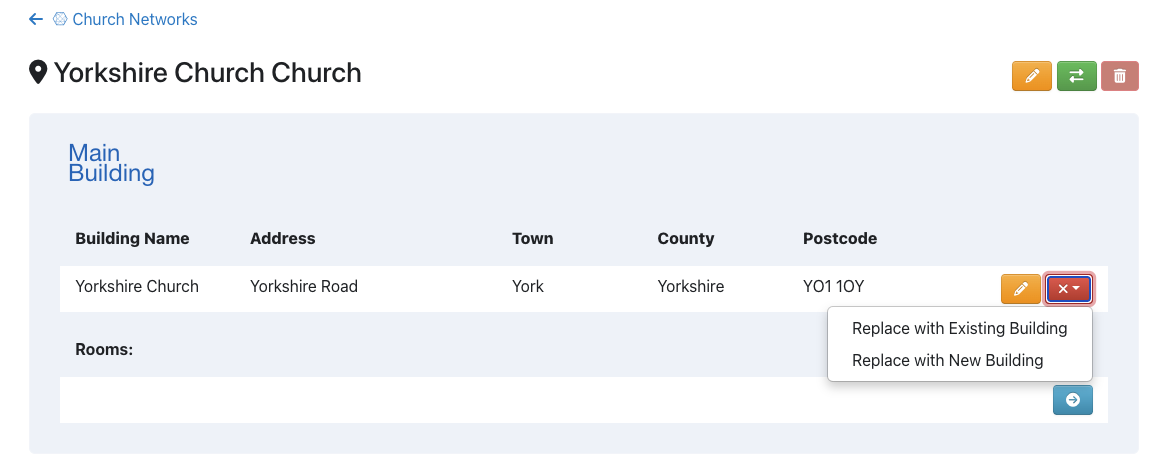
If we choose to Replace with an Existing Building, you will be able to select a Building from the dropdown menu. If we choose to Replace with a New Building, we will be able to add the details for the New Building.
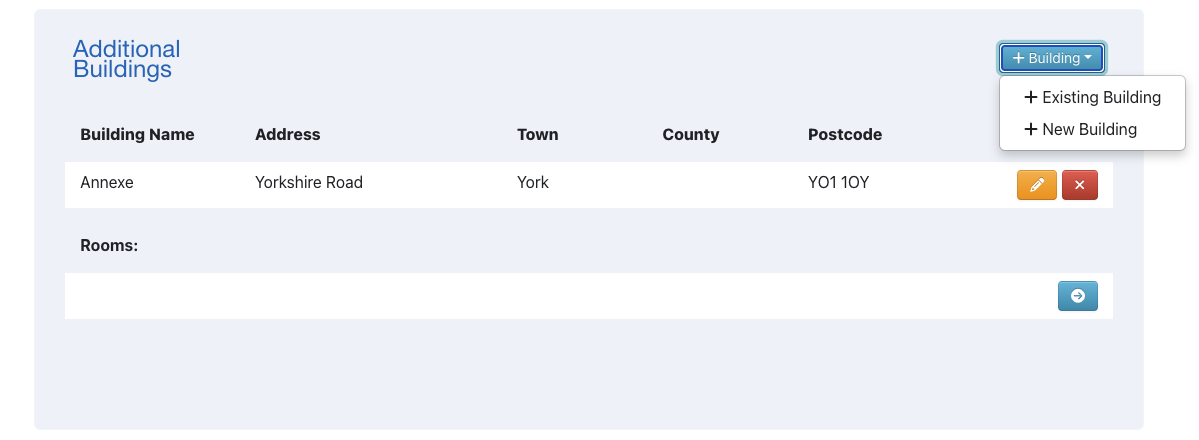
We are also able to add Additional Buildings, from here, and will, again, have the choice to add an Existing Building or add a New Building.
Additional Buildings can be edited by clicking the orange pencil icon and can be removed by clicking the red X icon.
We are also able to add Rooms to each of our Buildings, which will allow us to make use of the Room Booking module of iKnow. Adding Rooms is covered in the Room Booking area on the Support Site.